 Reports
Markets
Latest
Maps
Learn
Chat
Reports
Markets
Latest
Maps
Learn
Chat
Four ways to download charts
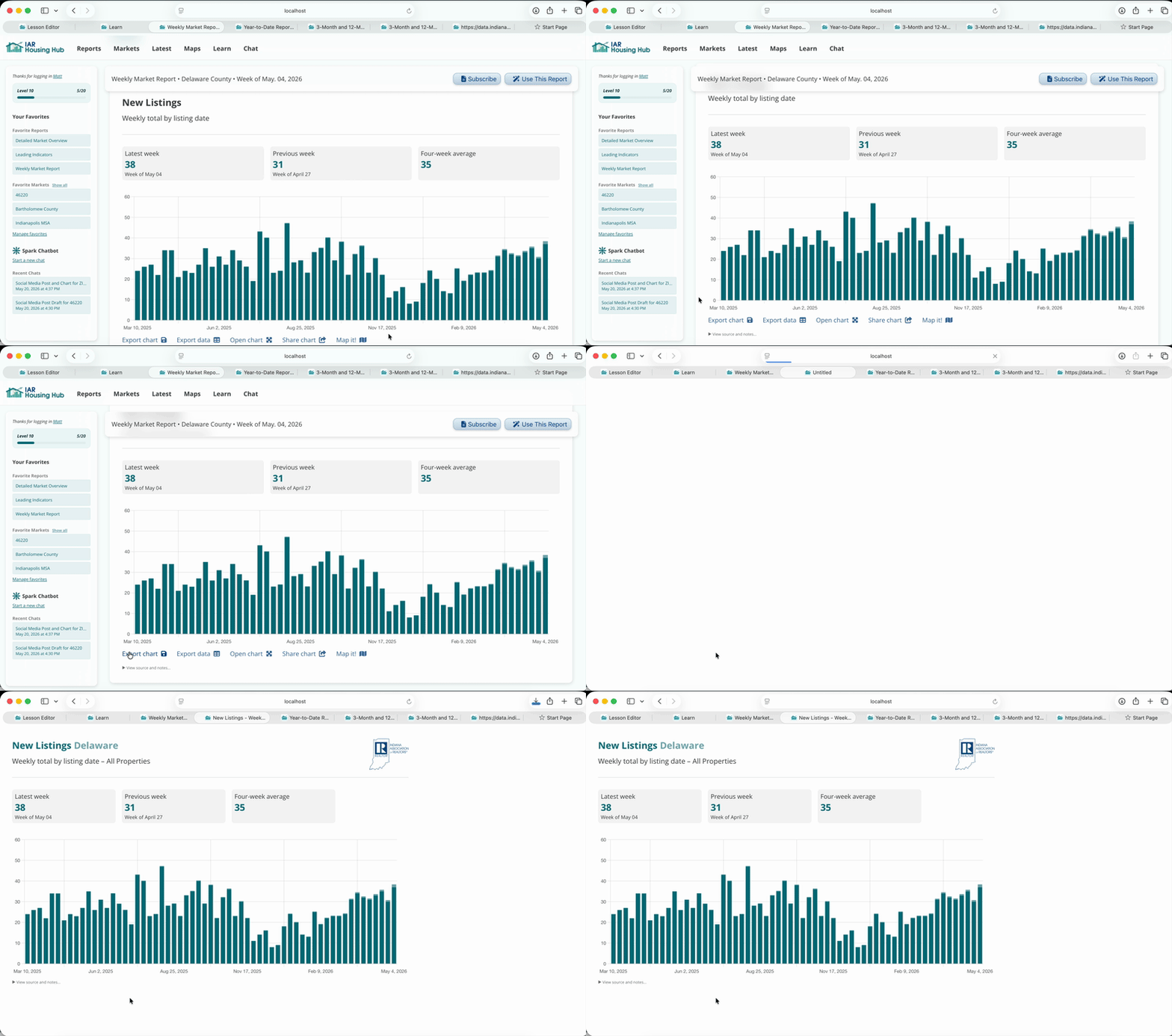
When you're viewing a chart in a report, click "Export Chart" from the tools below the chart. This opens a new tab and automatically downloads a png image of the chart.
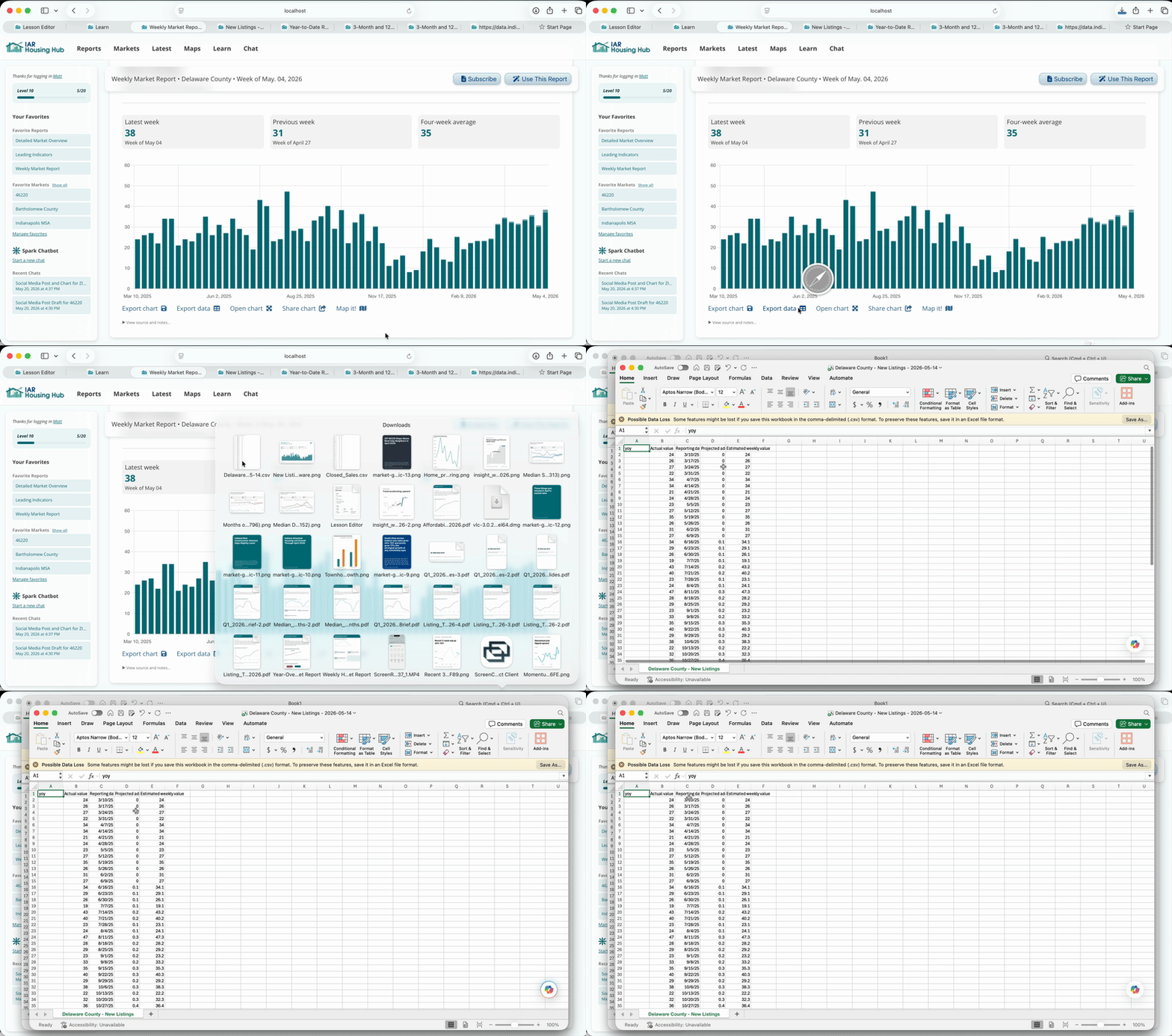
In the toolbar below the chart, click "Export Data". This will download a CSV, which you can open in Excel or Google Sheets.
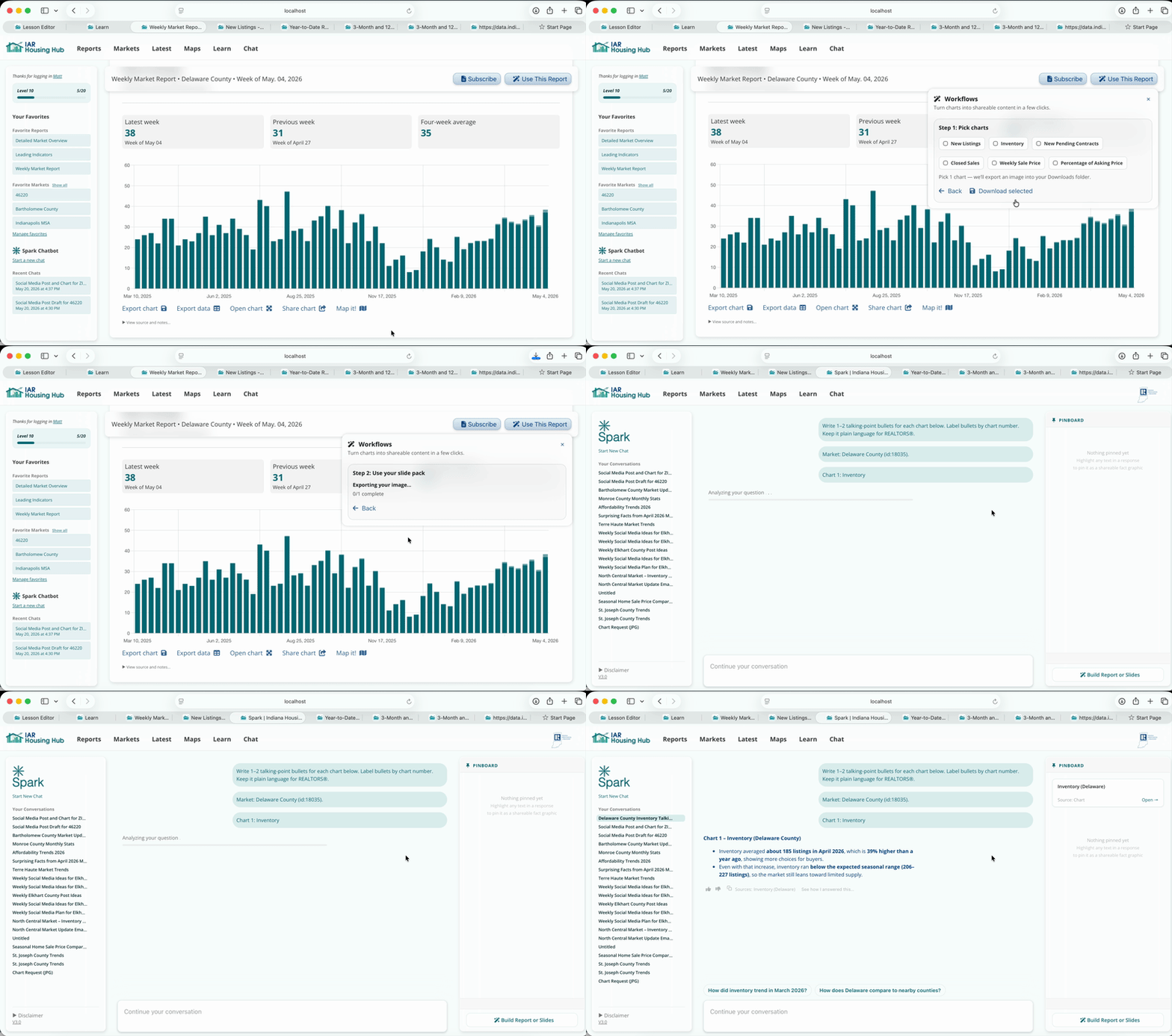
Click "Use This Report" and "Post a Chart". Select one chart to download it, then click the Spark link to generate a social media caption.
Post the chart, along with it's caption, to Instagram, Facebook, or LinkedIn
To export multiple charts optimized for slides, click "Use This Report" and "Build a Slide Pack". Then click the Spark link to generate talking points for each slide.
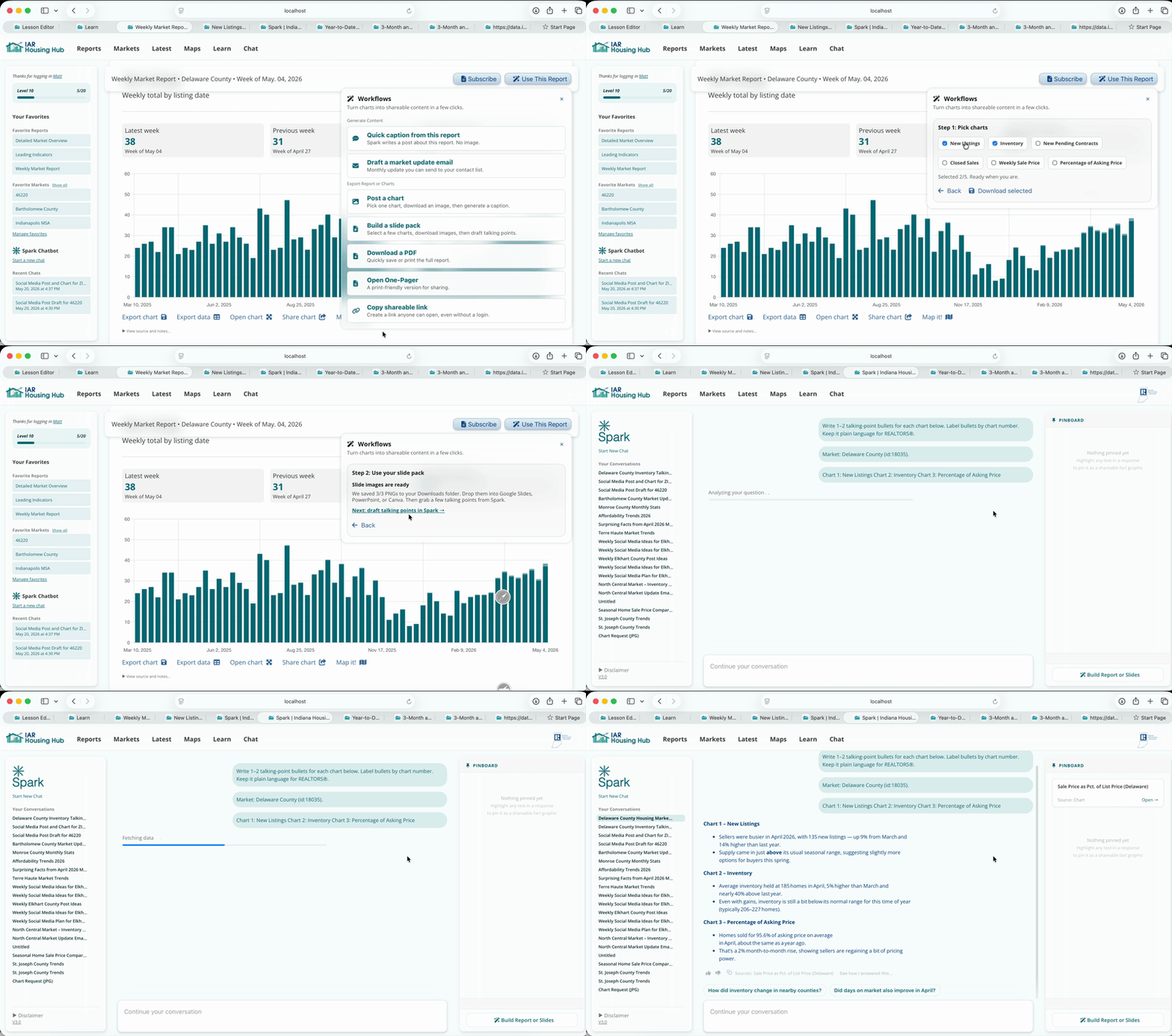
Copy the downloaded images and talking points into your slides to create a deck in seconds.
Quality data visualization can add to your credibility. You can share the image of a chart on social or via email in seconds.